How to Set Up Stripe Payments for Small Business UK – Complete Step-by-Step Guide (2026)
Written by Calvin Lo, Founder of Aphelios Software | July 2026 | 8 min read
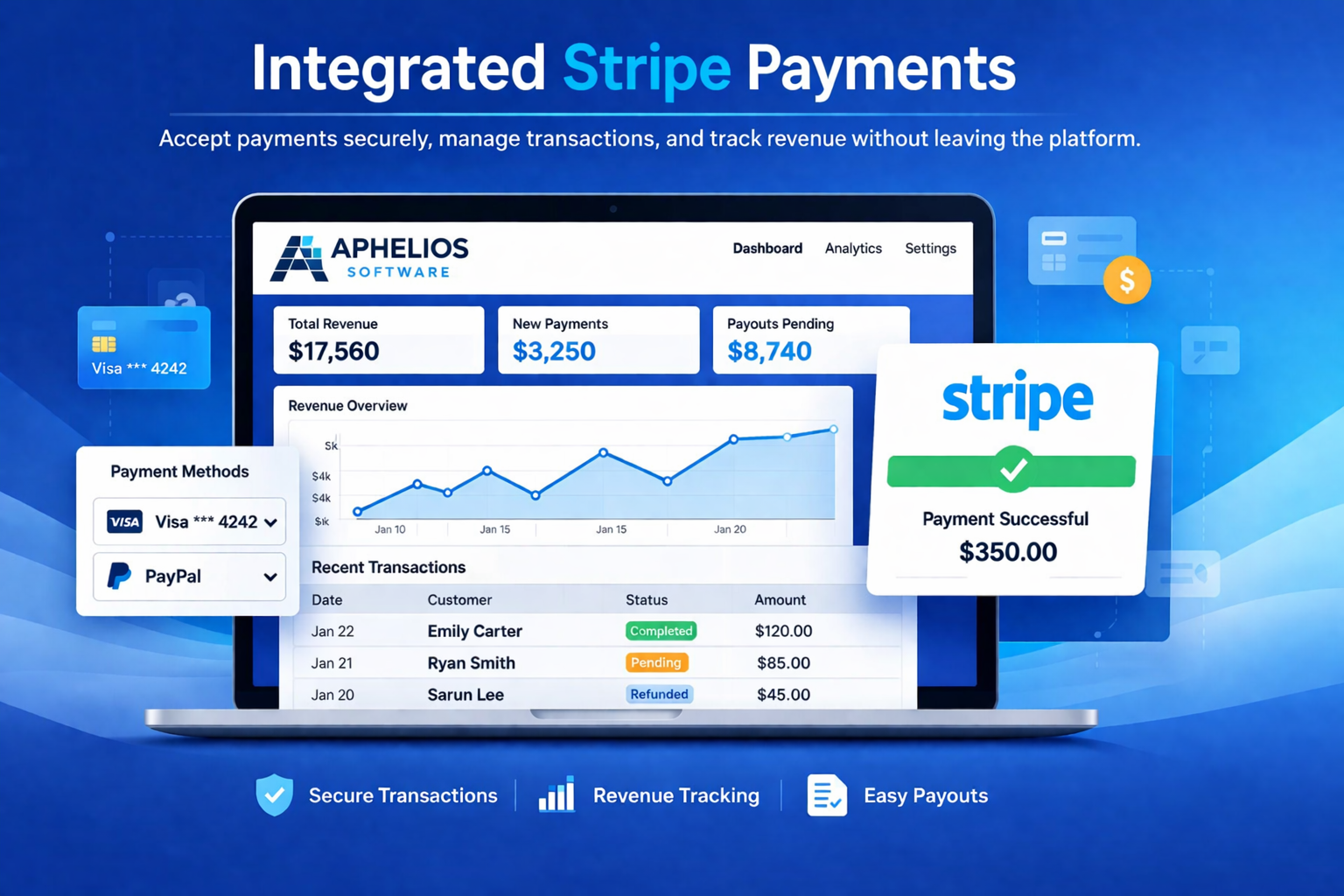
Stripe dashboard overview showing transactions, payouts and account health at a glance
Stripe is one of the most popular payment processors for UK small businesses, and for good reason. It enables you to accept card payments, Apple Pay, Google Pay and direct debit: all through a single integrated platform with competitive fees and no monthly commitments. Whether you run a retail shop, market stall, e-commerce store or service business, Stripe makes it easy to take payments securely and efficiently.
This complete step-by-step guide walks you through setting up Stripe payments for your UK small business in 2026: from creating your account and configuring payment methods to integrating with your POS system, testing transactions and going live. We also cover fees, security, reconciliation and best practices to help you get the most from Stripe.
Why Choose Stripe for Your Small Business?
Stripe has become the go-to payment processor for UK businesses for several compelling reasons:
- Low and transparent fees: Stripe charges 1.5% + 20p for UK card transactions, with no monthly fees, setup costs or minimum processing requirements. You only pay when you process a payment.
- No long-term contracts: Pay as you go with no cancellation fees. You can stop using Stripe at any time without penalty.
- Fast settlement: Funds are typically deposited into your UK bank account within 2-3 working days. Instant payout options are also available for a small fee.
- Multiple payment methods: Accept Visa, Mastercard, American Express, Apple Pay, Google Pay, direct debit and more through a single integration.
- Built-in fraud protection: Stripe Radar includes machine learning-based fraud detection that blocks fraudulent transactions before they reach your account. 3D Secure authentication is applied to qualifying transactions automatically.
- Easy integration: Stripe integrates with hundreds of platforms including Aphelios Software, Shopify, WooCommerce, Squarespace and more. Many offer one-click integration requiring no technical skills.
- Comprehensive dashboard: The Stripe Dashboard provides real-time visibility into your transactions, payouts, refunds, disputes and customer payment data.
Step 1: Create Your Stripe Account
Visit stripe.com/gb and click "Start now". You will be guided through a registration process that requires:
- Business details: Your company name, trading name (if different), registered address and business type (sole trader, limited company, partnership, etc.).
- VAT number: If your business is VAT registered, have your VAT number ready.
- UK bank account: Stripe will need your sort code and account number for payouts. The account must be in the same legal entity name as your Stripe account.
- Verification documents: Stripe will ask for proof of identity (passport or driving licence) and, depending on your business type, proof of business registration such as Companies House documentation.
- Website or business description: You will need to describe what your business sells and provide a website or social media presence.
The verification process typically takes 24-48 hours, though many accounts are approved immediately or within a few hours. Stripe will notify you by email when your account is ready.
Step 2: Configure Your Payment Settings
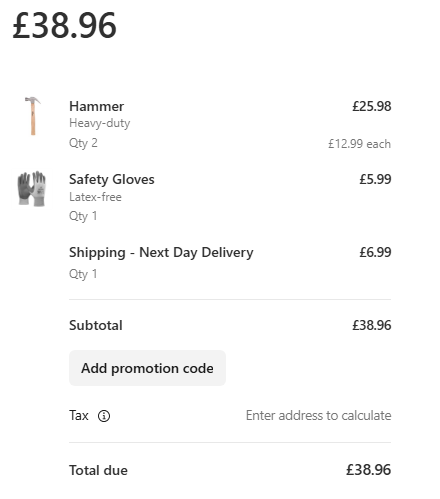
Stripe checkout page with multiple payment options including Apple Pay and Google Pay
Once your account is approved, log in to the Stripe Dashboard. From the settings menu, configure these essential payment settings:
- Statement descriptor: Set the text customers see on their bank statements (e.g., "APHELIOS SOFTWARE"). Keep it short and recognisable to reduce confusion and disputes.
- Payment methods: Enable the payment methods you want to accept. For UK businesses, we recommend enabling cards (Visa, Mastercard, Amex), Apple Pay, Google Pay and direct debit.
- Webhook endpoints: If you are using a POS system like Aphelios, configure webhook URLs to receive real-time payment notifications. Most integrated platforms handle this automatically.
- Customer receipts: Enable automatic email receipts and customise the branding with your business logo and colours for a professional customer experience.
- Tax reporting: Configure your tax settings for Stripe to help with VAT and self-assessment reporting.
Step 3: Connect Stripe to Your POS System
The most important step is connecting Stripe to your POS system or business management system. With Aphelios Software, Stripe integration is built in and requires no technical setup:
- Log in to your Aphelios dashboard and navigate to Settings > Payment Integration.
- Select Stripe from the available payment providers.
- Enter your Stripe API keys: These are found in your Stripe Dashboard under Developers > API keys. You will need both the Publishable Key and the Secret Key.
- Configure webhook: Aphelios will provide a webhook URL to enter in your Stripe Dashboard under Developers > Webhooks. This enables real-time payment status updates.
- Save and enable: Your POS system is now connected to Stripe. Every payment processed through your POS will be handled by Stripe, with inventory and sales updates happening automatically.
If you are using a different POS platform, check whether it offers native Stripe integration. Most modern platforms do, which means you can connect your Stripe account in minutes without writing any code.
Step 4: Test Your Payment Setup
Before going live, use Stripe's test mode: a sandbox environment where you can simulate payments without moving real money. Enable test mode in your Stripe Dashboard (toggle in the top-right corner). Use the test card numbers provided by Stripe (e.g., 4242 4242 4242 4242 for a successful payment) to verify that:
- Payments are processed successfully through your POS system.
- Funds appear correctly in your Stripe Dashboard under the Payments tab.
- Inventory levels update automatically after each test sale.
- Customer receipts are generated and sent (if enabled).
- Refunds can be processed through your POS interface and appear in Stripe.
- Webhook events are being received correctly by your POS system.
Testing should take no more than 15-20 minutes. Once you are satisfied that everything works correctly, disable test mode and proceed to Step 5.
Step 5: Go Live and Start Accepting Payments
Once testing is complete, toggle your Stripe account from test mode back to live mode. Your POS system is now ready to process real payments. Before you start, here are some best practices:
- Process a small test transaction: Make a small live payment (e.g., £1) to confirm everything works with real money, then refund it.
- Monitor your first payout: Check your Stripe Dashboard after 2-3 days to confirm the first payout is deposited into your bank account correctly.
- Familiarise your team: Show your staff how to process payments, issue refunds and check transaction status in both your POS system and the Stripe Dashboard.
- Set up payout notifications: Enable email notifications for successful payouts and failed payments in the Stripe Dashboard settings.
Stripe Fees for UK Businesses in 2026
Stripe's pricing for UK businesses remains competitive. Here is a complete breakdown of fees as of 2026:
| Payment Type | Fee | Example (£10 sale) |
|---|---|---|
| UK card (Visa, MC, Amex) | 1.5% + 20p | 35p (£9.65 received) |
| Apple Pay / Google Pay | 1.5% + 20p | 35p (£9.65 received) |
| International cards | 1.5% + 20p + 1% | 45p (£9.55 received) |
| Direct debit (GBP) | 0.5% + 5p (capped £2) | 10p (£9.90 received) |
| Chargeback fee | £15 per dispute | Refunded if you win |
| Instant payout | 1% (min 50p) | 50p for £50 |
There are no monthly fees, setup fees or minimum processing requirements with Stripe, making it an excellent choice for small businesses with variable transaction volumes. For a business processing £5,000 per month in UK card transactions, monthly fees would be approximately £95: significantly less than many traditional merchant account providers. You can see what Aphelios adds on top on our pricing page.
Stripe Integration with Aphelios Software

Aphelios dashboard with Stripe integration: payments, inventory and sales in one view
Aphelios Software includes native Stripe integration, meaning you do not need to manage payments separately from your inventory and sales system. When you connect your Stripe account to Aphelios, every transaction is automatically recorded against the correct customer, stock levels are updated in real time, sales reports reflect actual revenue, and refunds are processed directly through your POS interface. This seamless integration saves hours of manual reconciliation each week and ensures your financial data is always accurate.
Beyond basic payment processing, the integration enables QR code payments (scan-to-pay with no hardware), automatic receipt generation, real-time low-stock alerts triggered by sales, and comprehensive reporting that combines payment data with inventory and customer information. For UK small businesses looking to streamline operations, Stripe integration through Aphelios is the simplest and most cost-effective payment solution available.
Related Articles
Stripe POS Integration for Small Business
Combine Stripe payments with POS and inventory management.
Read moreQR Code Payments for Small Business
Accept contactless payments with QR codes and no extra hardware.
Read moreStart Selling Online with E-Commerce Inventory
Manage your e-commerce inventory and online sales from one platform.
Read moreTry Aphelios with Built-In Stripe Payments
Start your free 14-day trial and experience seamless Stripe payment integration with real-time inventory updates and automated reporting. No credit card required.
Start Free Trial