How To · Team Chat UK 2026
How to Set Up Team Chat for Your Small Business UK 2026 – A Simple Guide
Written by Calvin Lo, Founder of Aphelios Software | Updated August 2026 | 12 min read
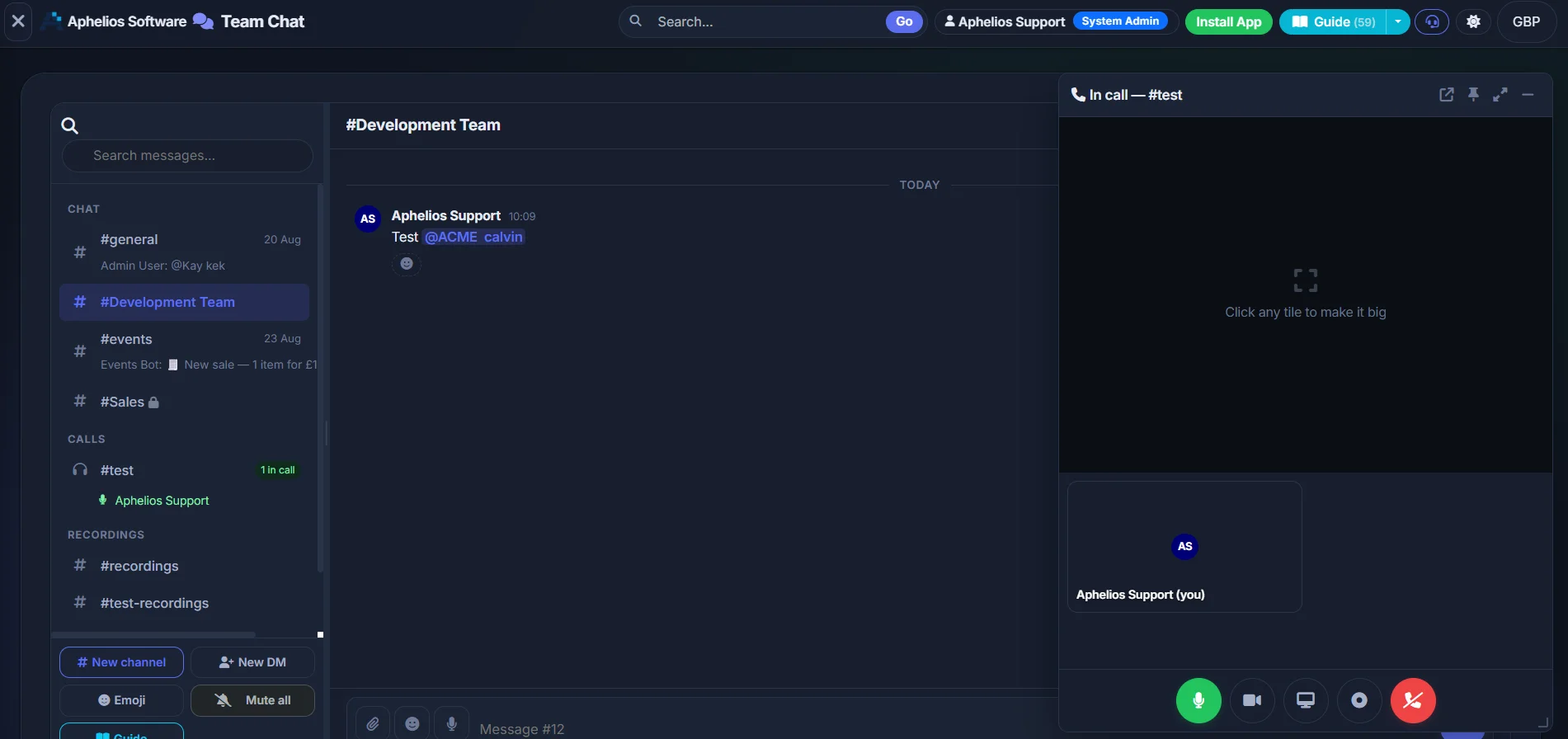
Up and running in about 10 minutes — no training, no IT project, no extra app. From £29.99/mo, UK-hosted.
In this guide
- Intro — setup shouldn’t be an IT project
- Step 1: Create a few simple channels (3–4, not 15)
- Step 2: Invite the right people
- Step 3: Post, pin and share — welcome template & pinned example
- Step 4: Keep it tidy — DMs, pins, archive, phone & tablet
- Common mistakes to avoid
- 10-minute quick-start checklist
- Real scenarios — market trader, café, retailer
- Naming tips that keep chat calm
- FAQ — 6 non-technical answers
Prefer a comparison first? See Best Team Chat UK 2026 — 7 tools compared or Aphelios Team Chat →.
Setting up team chat shouldn’t feel like an IT project
How to set up team chat for your small business UK 2026 is simpler than most guides make it sound — no new server, no training day and no complicated permissions. With Aphelios Team Chat you create a few tidy channels, invite the right people and start chatting where you already run your shop. This guide shows you exactly how in about 10 minutes, so messages don’t get missed, decisions stay pinned and work feels calmer from day one.
Small teams usually lose time because work chat is scattered — a delivery update buried in a family WhatsApp group, a price change lost in email, a rota photo that disappears by morning. When chat lives next to your inventory, tasks, scheduler and CRM, that copying stops. You talk about the job and do the job in one login — on phone, tablet and computer, hosted in the UK from £29.99/mo.
What you’ll have by the end: 3–4 clear channels, the right people in the right places, one pinned post per channel, one shared file where everyone can find it, and a tidy habit that keeps your team in sync. If you can use WhatsApp, you can do this. Let’s get you live.
Benefit in one line
Fewer missed messages, fewer “as per my last email” moments and a clear record the business owns — not personal phones. New starters find answers without asking twice and you close the day knowing what was decided.
Step 1: Create a Few Simple Channels — 3–4, Not 15
Start small. The calmest setup we see in UK shops, cafés and trade teams is 3–4 channels that match how you actually work. You can always add more for a project or a busy season and archive what you don’t need — but starting with 15 splits attention and leaves each channel empty.
The starter four
- General — everyday updates for everyone. Keep it short and useful.
- Shop Floor / Operations — stock, deliveries, tasks and who’s doing what today.
- Buying & Suppliers — orders, price changes, lead times and supplier phone numbers.
- Social — birthdays, banter and wins. This keeps General tidy.
Why 3–4 works
- Less scrolling, fewer misses — one place to check per topic.
- New starters know where to look — pins stay at the top.
- You actually use them — busy teams abandon half-empty channels.
- Easy to grow — add “Christmas Market” or “Shop Fit” later, then archive.
Tip: If you’re torn between two channel names, pick the simpler one. You can rename in seconds. See Team Chat →.
Make it yours — examples you can copy:
| Business | Try these channels | What goes in each |
|---|---|---|
| Retail shop | General · Shop Floor · Buying & Suppliers · Social | Rota and opening notes in General; delivery ETAs and markdowns in Shop Floor; orders and supplier list in Buying; birthdays in Social |
| Café / coffee shop | General · Front of House · Kitchen / Ops · Suppliers | Daily specials in General; table and till handover in Front of House; prep and waste in Kitchen; milk and bakery orders in Suppliers |
| Trade / field team | General · Operations · Buying · Sites | Jobs for the day in General; van stock and tool checks in Operations; timber/parts prices in Buying; one channel per active site |
| Market trader | General · Stall Ops · Buying · Events | Pitch and weather in General; float and setup in Stall Ops; restock list in Buying; Saturday market or festival in Events |
Avoid the 15-channel trap
More channels feel organised, but empty channels get ignored and important updates hide. Start with the four above, use pins and file sharing to keep each one useful, and add a channel only when a topic truly needs its own home for more than a week. If a channel is quiet for a fortnight, archive it — you can unarchive in one click.
Benefit: one tidy place beats five quiet rooms. Your team checks fewer places and actually sees the update. Learn more on choosing simple chat or why WhatsApp gets messy.
Ready to create them? In Aphelios Team Chat go to Chat → New Channel → name it → add a one-line purpose → create. That purpose shows at the top so everyone knows what belongs there — fewer “where do I post this?” questions from day one. Pair each channel with a task list or calendar date and talk turns into action without switching apps.
Step 2: Invite the Right People — Not Everyone Everywhere
The quickest way to keep chat calm is to put the right people in the right channels — not everyone in every channel. Most misses happen because a group is too noisy, so people mute it and miss the one message that mattered.
Who goes where
- General: everyone — short, useful, pinned where needed.
- Shop Floor / Operations: staff on shift + manager. Keep it about today’s work.
- Buying & Suppliers: owner, manager, buyer. Add others only for a specific order.
- Social: everyone — but keep it out of General so work stays findable.
On Aphelios you control access per channel. Add or remove in seconds when rotas change.
Use DMs for quick one-to-one questions
“Can you cover 3–5pm?” or “What’s the code for the roller shutter?” belongs in a direct message, not in Shop Floor. DMs keep group chats focused and reduce pings for people who don’t need to weigh in.
- DM = fast, private, no noise for others.
- Channel = decision or update multiple people need to see.
- If a DM turns into a group decision, post the outcome in the channel and pin it.
Work accounts vs personal — keep customers separate
On Aphelios Team Chat only work accounts see work chat. Customers don’t appear in the chat list — they stay in CRM where they belong. When someone leaves, you remove their work account and business history stays with the business. No chasing personal phones or hoping a WhatsApp group was backed up.
This also sets calmer boundaries. Work chat stays in work; WhatsApp stays personal so evenings and weekends feel quieter. It’s a small change that saves hours of “who said what and where?” and protects you if a phone is lost.
Benefit: tidy ownership means fewer data worries and a clear record at handover. See UK-hosted comparison and about Aphelios.
Quick invite script (copy + tweak)
Send this in General after you create channels:
Benefit: people know where to post and where to look — so you repeat yourself less.
Step 3: Post, Pin and Share — Where First Impressions Stick
What you post first teaches your team how chat should feel. Keep it short, useful and pinned — so the important bits don’t slide away by lunch. This is where a welcome message, a pinned post and one shared file do the heavy lifting.
Welcome message template — copy, paste, tweak
Welcome to #shop-floor 👋
This channel is for today’s running of the shop — stock, deliveries, till handover and who’s on what. Quick 1-1 questions → DM instead.
How we keep it tidy:
- Post updates as one short message, not a thread of five.
- Pin decisions and delivery ETAs.
- Share files once, where work lives — next to stock & tasks.
Today: Delivery 10:30 — check list in pinned post.
First file shared below — tap to open. Questions? DM @Manager.
Tip: Post a similar welcome in #buying and #general — two sentences about purpose is enough. Explore Tasks and Scheduler to turn chatter into action.
What to pin in each channel
- General — pin: opening hours, emergency contact, link to rota and a one-line “how we use chat”.
- Shop Floor / Operations — pin: delivery windows, till float procedure, markdown rules and today’s priority.
- Buying & Suppliers — pin: supplier names, phone numbers, account numbers, minimum order and cut-off times.
- Social — pin: birthdays this month and the team’s favourite lunch spot — lightweight, but it stops birthday messages clogging General.
Pins stay at the top. New starters find answers without asking twice and you stop re-typing the same number.
Example pinned post — Buying & Suppliers (copy this)
📌 PINNED — Buying & Suppliers — updated 27 Aug 2026
Suppliers: Smith Bakery 0117 123 4567 (orders by 3pm, next-day), Fresh Dairy 0117 987 6543 (MOQ £80), Packaging Co 0117 555 0101 (Tue/Fri cut-off)
Accounts: Bakery #8841, Dairy #4420 — terms 14 days. Link to price sheet below.
Rules: Post orders as “Qty × SKU — Supplier — needed by”. Tag @Buyer. Pin price changes here.
File: Price list v12 (shared below) — check before re-ordering.
Last edited by @Owner — press ✓ if you’ve read.
Benefit: One pinned post ends “what’s the number for...?” and “when’s cut-off?” forever. Pair it with a shared stock file or supplier sheet so chat and stock sit side by side.
Share one file where work lives
Pick one file that proves chat lives next to the job — not in a personal phone. A price list in #buying, a rota in #general or a delivery photo in #shop-floor. Show the team that updates sit beside inventory and tasks so they don’t have to hunt across email and WhatsApp.
- Share from your computer or phone — drag, drop, done.
- Mention the channel (“Price list v12 pinned in #buying”) so it’s findable.
- Update the same pinned post when the price changes — no duplicate threads.
See chat vs email for small businesses — chat keeps the decision visible, email buries it.
Step 4: Keep It Tidy — DMs, Pins, Archive and Phone & Tablet
A tidy chat is a useful chat. Once the first pins are up, a few small habits keep it that way — and mean phone, tablet and computer all stay in sync whether your team is on the till, in the kitchen or out in a van.
Four tidy habits
- DMs for quick: one-to-one “can you check aisle 3?” → DM. If it affects the group, post the outcome in the channel and pin it.
- Keep group on topic: Shop Floor is for running the shop today. Move banter to #social — you’ll thank yourself at 5pm.
- Pin what matters: every time a decision is made, pin it (or update the pinned post). Decisions are searchable later.
- Archive, don’t clutter: finished project? Archive the channel. It’s one click to bring back.
Works on phone, tablet and computer
Open Team Chat on whatever is to hand. Same channels, same pins, same files — no “which app was that on?” moment. Aisha on the till posts a delivery photo from her phone; Tom in the stockroom checks the pin on a tablet; you approve from your laptop at home.
- Messages sync instantly — no need to re-send.
- File shares and pins where work happens, next to Scheduler and Tasks.
- Access follows work accounts — remove someone when they leave without touching personal phones.
Benefit: your team stays in sync without carrying a laptop everywhere. See pricing — Team Chat is included from £29.99/mo.
A calm day with tidy chat
9:02am — Delivery ETA posted and pinned in #shop-floor. 10:30am — Photo of shortage shared, task created to reorder via inventory. 11:15am — Buyer confirms order in #buying and updates pinned price. 4:00pm — Rota change agreed by DM, pinned in #general. No email chase, no WhatsApp scroll — just work where work lives.
Want this flow? Start your free trial → or explore Team Chat.
Common Mistakes to Avoid — The Quiet Killers of Small-Business Chat
Most chat fails aren’t technical — they’re habits. Dodge these four and your channels stay useful after week one.
1. Too many channels on day one
What goes wrong: 12 channels look tidy on a whiteboard, but each one gets one message a week. Teams hop between rooms, nothing feels alive and updates get missed anyway.
Fix: Start with 3–4, make them busy and useful, then add a channel when a topic truly needs its own home for more than a week. Archive anything quiet for 14 days. Your team checks fewer places and actually sees the message — see how others over-complicate chat.
2. Everyone in every channel
What goes wrong: a noisy group gets muted, so the one critical supplier update is lost. People tune out because most messages aren’t for them.
Fix: Invite by need. General = everyone; Shop Floor = shift team + manager; Buying = buyer + owner. Use DMs for quick checks and post only the decision in the channel. Aphelios makes per-channel membership one click — and work accounts keep customers out of the list (CRM handles customers).
3. No pins — so the same question is asked daily
What goes wrong: opening hours, cut-off times and supplier numbers slide away. Every morning someone asks “what time do we open on Sunday?” and you re-type it.
Fix: Pin it. One pinned post per channel with the numbers and rules that matter. Update the pinned post instead of posting a new one — search stays clean and new starters self-serve. Benefit: fewer interruptions, faster handovers.
4. Mixing personal and work — especially on WhatsApp
What goes wrong: work and family photos share one inbox, pings at 10pm blur boundaries, and when someone leaves, business history leaves on their personal phone. Decisions are untraceable by morning.
Fix: Keep personal in WhatsApp, work in Team Chat. Work stays with the business, UK-hosted, searchable and removable when access changes. See WhatsApp vs team chat and Slack alternative / Teams alternative if you’re weighing options. Your evenings get quieter and your business keeps its memory.
Quick-Start Checklist — 10 Minutes to Live
Set a timer. You’ll be chatting before it rings. Tick these off and you’re done for week one — refine later as you learn what your team actually uses.
Minutes 0–4 · Create
- ☐ Create General — add one-line purpose
- ☐ Create Shop Floor / Operations
- ☐ Create Buying & Suppliers
- ☐ Create Social (optional but worth it)
- ☐ Set a simple name style — lower-case with hyphens (see naming tips)
Minutes 4–7 · Invite & post
- ☐ Invite right people per channel (not everyone everywhere)
- ☐ Post welcome message in each channel (use template above)
- ☐ Explain DMs: “quick 1-1 → DM, group decision → channel + pin”
- ☐ Test on phone and tablet — same login, same pins
Minutes 7–10 · Pin & share
- ☐ Pin opening hours + key contacts in #general
- ☐ Pin supplier numbers + cut-offs in #buying
- ☐ Pin today’s priority in #shop-floor
- ☐ Share one file (price list, rota or photo) where work lives
Real Scenarios — How Small UK Teams Actually Use It
Theory is tidy; real life is a wet delivery and a missing price tag. Here’s how three typical small businesses run chat so it pays for itself in saved time.
Market trader — two stalls + online
Setup: #general, #stall-ops, #buying, #events. Owner + 2 staff. Chat sits next to stock and tasks — no extra app on market day.
- Morning: pitch number posted in #general and pinned; weather and float photo shared in #stall-ops.
- Midday: best-seller runs low — photo shared, task created to restock, pin updated in #buying with supplier cut-off 3pm.
- Evening: event channel #leeds-weekend archived until next month — chat stays lean.
Benefit: One place for pitch, stock and reorder — no re-typing between WhatsApp, notes and sheets. Less missed restock, faster close-up.
Independent café — 6 staff
Setup: #general, #front-of-house, #kitchen-ops, #suppliers. Pins for specials, allergens and supplier numbers. Works on phone + tablet by the till.
- Specials: new oat cake price pinned in #general — till team reacts ✓ so manager knows it’s seen.
- Supplier: milk delivery delayed — update pinned in #suppliers, backup supplier DM’d, calendar reminder set for 7am check.
- Social tidy: birthday chat stays in #social; #general stays about service — fewer “sorry, missed that” moments.
Benefit: specials and allergens stay visible at the top, supplier numbers are one tap away, and handovers don’t live on personal phones.
Retailer — gift shop with click & collect
Setup: #general, #shop-floor, #buying, #social. Chat lives next to CRM and inventory — one login for the owner.
- Delivery: courier ETA posted + pinned in #shop-floor; photo of damaged box shared — decision to refuse pinned.
- Buying: new line sampled — file shared in #buying, poll run for “stock yes/no”, result pinned and turned into a task to create SKU.
- Customer follow-up: chat decision logged to CRM note — no copying from WhatsApp.
Benefit: talk turns into tasks and stock without app-hopping. Fewer lost deliveries and a clear audit of who decided what — handy at month end.
Whichever you are, the pattern is the same: a few focused channels, the right people, pins where it matters and DMs for speed. Keep work next to work and personal next to personal — your business feels calmer and your staff know where to look. Compare options in Best Team Chat UK 2026 or see why teams move from WhatsApp and endless email threads.
Naming Tips — Small Choices, Big Calm
Names teach behaviour. A good name tells people what belongs there — so they post in the right place without being asked twice.
Do this
- Short + lower-case: #general, #shop-floor, #buying, #social — easy to type on a phone.
- Use hyphens not spaces: #shop-floor reads faster than #ShopFloorOps2026.
- Add a one-line purpose: “Shop Floor — today’s stock, deliveries & handover.” Shows at the top.
- Keep Social separate: banter has a home, so General stays about work.
- Add project channels only when live: #xmas-market, #shop-fit-aug — archive after.
Avoid this
- Clever acronyms: #ops-bosl means nothing to a new starter.
- Duplicate names: #orders and #buying — pick one.
- Year in the name: #rota-2026 dates fast. Pin the date instead.
- Over-nesting: #buying-bakery-dairy-tue — use pins and DMs, not a new room for every loaf.
Need to rename? One click. Team keeps history, pins stay — no disruption.
Example names you can copy
Pick 3–4 now, add more only when a topic truly needs its own home. Less is more — see Team Chat → for how channels and DMs feel in Aphelios.
Why small businesses stay with Aphelios
- Chat where work lives — next to inventory, sales, tasks, scheduler and CRM in one login.
- UK-hosted & business-owned — remove access when someone leaves, keep history with the business, not a private phone.
- No extra app or per-user add-on — Team Chat included from £29.99/mo. See pricing vs Slack & Teams.
- Phone, tablet and computer — same channels and pins everywhere, no training.
Result: fewer missed updates, faster handovers and a calm record you can trust at month end. Explore about us or start your free trial — no card needed.
FAQ — Team Chat Setup in Plain English
How long does it take to set up team chat?
About 10 minutes. Create 3–4 channels, invite colleagues to the right ones, post a welcome message and pin key info like opening hours and supplier numbers. Share one file so people see where work lives. Most small teams are chatting the same day — no IT help needed. It works on phone, tablet and computer.
What should my first channels be?
Start simple: General for everyday updates, Shop Floor or Operations for stock, deliveries and tasks, Buying & Suppliers for orders and price chats, and Social for birthdays and banter. Retail, café and trade teams all use this shape — see the table in Step 1. Add a project channel later and archive what you don’t need.
Should everyone be in every channel?
No — invite by need. General is for everyone; Shop Floor is for staff on shift plus manager; Buying is for owner/buyer. Use direct messages for quick one-to-one questions so group chats stay focused. In Aphelios you manage access per channel in seconds, customers stay in CRM and leavers lose access without taking chat on a private phone.
Can we keep WhatsApp for personal and move work to team chat?
Yes — keep WhatsApp for personal life and move work to team chat so updates don’t get buried, decisions stay pinned and searchable, and the business keeps its history. Work chat stays with work accounts, UK-hosted, and boundaries feel calmer. Read WhatsApp vs team chat for the full comparison.
Do we need training?
No — if your team can use WhatsApp or send an email, they can use team chat. Create a channel, add people, send a message and pin it. Photos, files, polls and pins are one tap away, next to tasks and scheduler. Try the 10-minute checklist above — that’s the whole learning curve.
Does it work on phone and tablet for shop floor and field teams?
Yes — Aphelios Team Chat works on phone, tablet and computer with the same channels and pins. Staff at the till, in the kitchen or out in the van stay in sync without carrying a laptop. Chat sits alongside inventory, sales and tasks in one login from £29.99/mo. See Team Chat → or best team chat comparison.
Still weighing tools?
If you’re choosing between apps, this plain-English trio helps you pick the calmest fit for a small shop — no per-user surprises.
Related Guides
Best Team Chat UK 2026
7 tools compared for 5 users
Aphelios Team Chat
Keep your team in sync — next to work
WhatsApp vs Team Chat
Keep work separate & findable
Chat vs Email
Faster updates, fewer misses
Slack Alternative UK 2026
Simple chat without the big bill
Teams Alternative UK 2026
Chat without needing 365
Set Up Team Chat in About 10 Minutes — From £29.99/mo
Channels and direct messages built into Aphelios — next to inventory, tasks, scheduler and CRM. UK-hosted, works on phone, tablet & computer.
Start Free TrialNo card needed · 14-day trial · See pricing or about us · Explore Team Chat →